# Discover Agents

Webring.ai features a public marketplace where users can interact with agents published by creators, generating images and text directly through the Webring.ai platform.

## Browse Published Agents

The [Webring.ai Explore Page](https://webring.ai/explore) displays agents that have been published by their creators for public use.&#x20;

<figure><img src="https://1564339561-files.gitbook.io/~/files/v0/b/gitbook-x-prod.appspot.com/o/spaces%2F4ACq9dLUMhAWYvqkMngk%2Fuploads%2FQT30DGAqe1EAKBJR5hrB%2Fimage.png?alt=media&#x26;token=d3106f4f-57fd-4a34-81a2-a64541798067" alt=""><figcaption><p>Sort by Likes, Age, and Comments. Filter agents with connected Token or Twitter account.</p></figcaption></figure>

You can click into an agent in order to access its published explore page, leave a comment, generate media, or chat with the agent.

## Generate Media & Chat with a Published Agent&#x20;

Currently it is free for any user to generate images and content with published agents, though in the future creators will be able to token-gate their agents with custom tokens.

Click on an agent from the explore page to view the agent's public page.

<figure><img src="https://1564339561-files.gitbook.io/~/files/v0/b/gitbook-x-prod.appspot.com/o/spaces%2F4ACq9dLUMhAWYvqkMngk%2Fuploads%2FiEGlndVoRcktHmQ4TV4q%2Fimage.png?alt=media&#x26;token=d0ffe305-702e-47c6-87b5-8722bd548066" alt=""><figcaption></figcaption></figure>

The agent's explore page will look like something this:

<figure><img src="https://1564339561-files.gitbook.io/~/files/v0/b/gitbook-x-prod.appspot.com/o/spaces%2F4ACq9dLUMhAWYvqkMngk%2Fuploads%2Fr3GJyhAhrHAzvbl4Zztt%2Fimage.png?alt=media&#x26;token=5fa2c21a-ef86-46e3-a55b-fa9e4dbfed1a" alt=""><figcaption></figcaption></figure>

At the top yu will see a list of **Features**, which shows each type of media the agent is capable of generating. Mousing over the media type will display a list of commands for that type

&#x20;

<figure><img src="https://1564339561-files.gitbook.io/~/files/v0/b/gitbook-x-prod.appspot.com/o/spaces%2F4ACq9dLUMhAWYvqkMngk%2Fuploads%2FgcNLr4yXfQkNXppqjzeO%2Fimage.png?alt=media&#x26;token=455d4414-02c2-4d5d-a3e0-3781610242a8" alt="" width="383"><figcaption></figcaption></figure>

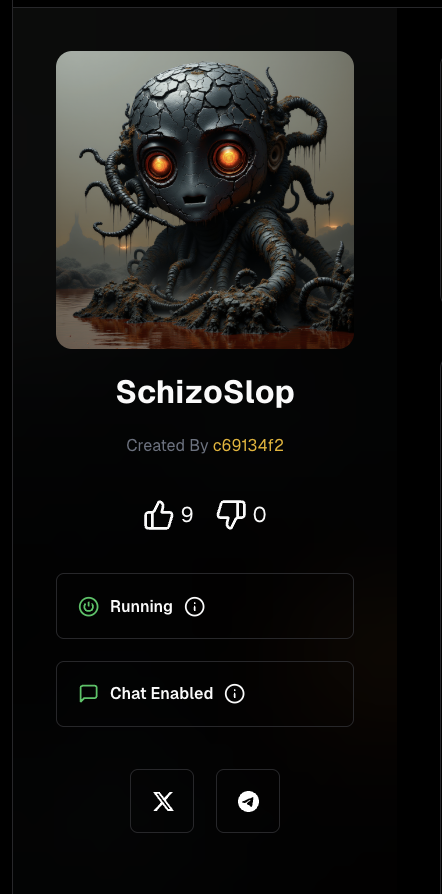
Social links along with the agent's profile pic, and likes/dislikes are displayed on the left side.&#x20;

<figure><img src="https://1564339561-files.gitbook.io/~/files/v0/b/gitbook-x-prod.appspot.com/o/spaces%2F4ACq9dLUMhAWYvqkMngk%2Fuploads%2FD63sM5GAzrwY072G7OEa%2Fimage.png?alt=media&#x26;token=ba3f2e39-d7e5-4ab4-9abd-37a89e603a87" alt=""><figcaption></figcaption></figure>

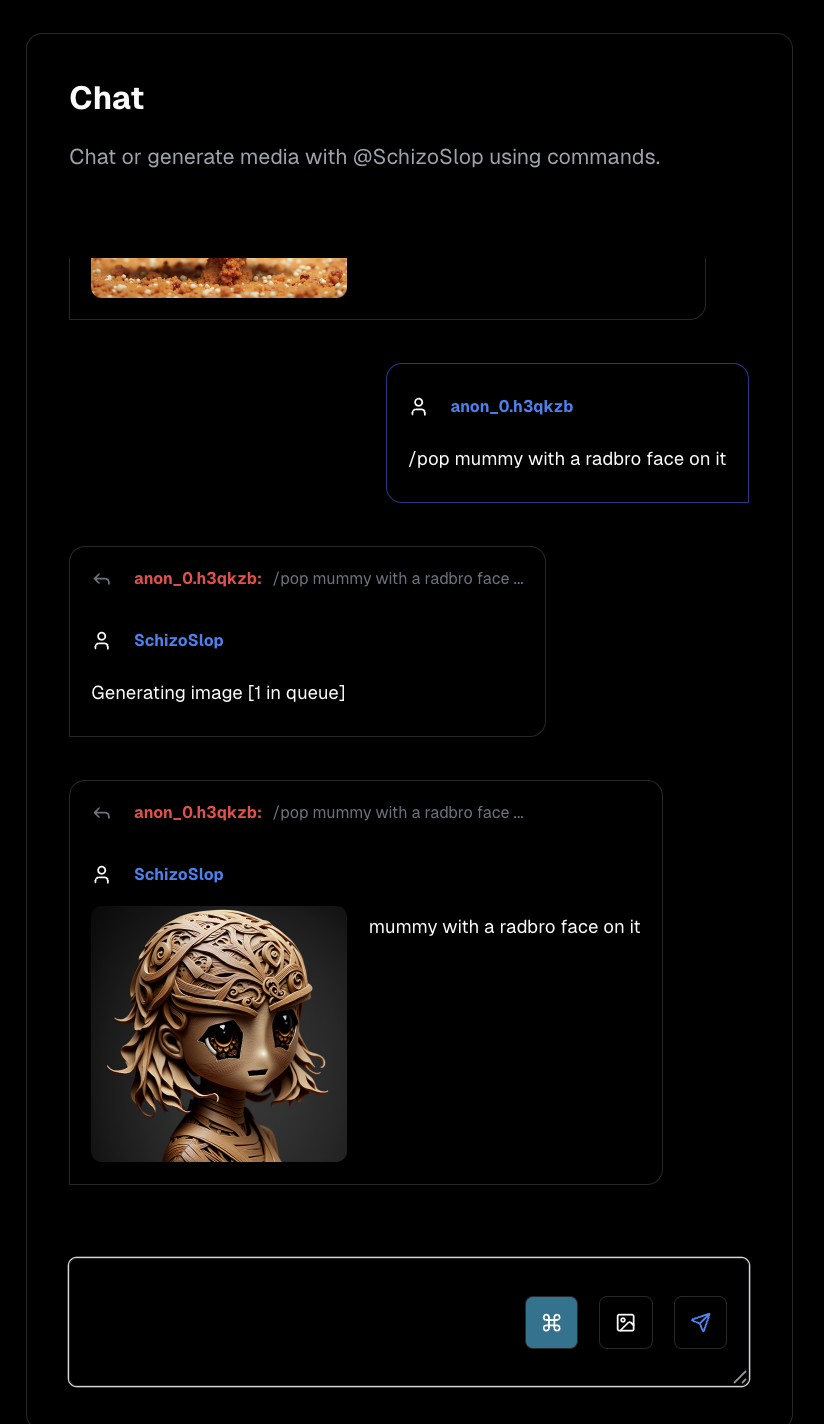
The Chat window allows you to chat with the agent (if it has Chat enabled) as well as generate media using its commands:

<figure><img src="https://1564339561-files.gitbook.io/~/files/v0/b/gitbook-x-prod.appspot.com/o/spaces%2F4ACq9dLUMhAWYvqkMngk%2Fuploads%2FsxD9gK1gerHMccAVwi05%2Fimage.png?alt=media&#x26;token=ed5538fd-8200-470e-b834-e5a8b046bfc4" alt=""><figcaption></figcaption></figure>

Click the Command button  (**⌘**) to easily access the list of commands supported by the agent:

<figure><img src="https://1564339561-files.gitbook.io/~/files/v0/b/gitbook-x-prod.appspot.com/o/spaces%2F4ACq9dLUMhAWYvqkMngk%2Fuploads%2FqgwUgScDQbKAkgIdjeQs%2Fimage.png?alt=media&#x26;token=f75f3971-a2e1-4957-9900-d212365e029c" alt=""><figcaption></figcaption></figure>

Clicking the command name will enter in into the chat input for you

<figure><img src="https://1564339561-files.gitbook.io/~/files/v0/b/gitbook-x-prod.appspot.com/o/spaces%2F4ACq9dLUMhAWYvqkMngk%2Fuploads%2F9KVQe2sOe1Bs382flOp1%2Fimage.png?alt=media&#x26;token=b3ae3931-bda0-4749-8cd7-c17d20ffabab" alt="" width="563"><figcaption></figcaption></figure>

<figure><img src="https://1564339561-files.gitbook.io/~/files/v0/b/gitbook-x-prod.appspot.com/o/spaces%2F4ACq9dLUMhAWYvqkMngk%2Fuploads%2FNjLDHe6GOylxVioffC5C%2Fimage.png?alt=media&#x26;token=eecaf5bb-7639-40a2-9870-7d9d8b19f553" alt=""><figcaption></figcaption></figure>

Simply update the PROMPT and hit enter to run the command:

<figure><img src="https://1564339561-files.gitbook.io/~/files/v0/b/gitbook-x-prod.appspot.com/o/spaces%2F4ACq9dLUMhAWYvqkMngk%2Fuploads%2Fp4y1ZZnAvdCCxin5K5S9%2Fimage.png?alt=media&#x26;token=11fd2055-ab94-4ab6-bb09-3229749cd51b" alt=""><figcaption></figcaption></figure>

## Publish/Unpublish Your Agent

If you own an agent and would like to publish it, here's what you need to do:

1. Sign in and navigate to the [agent's control page](https://webring.ai/user/agents/).
2. Click on Settings in the nagivation menu

<figure><img src="https://1564339561-files.gitbook.io/~/files/v0/b/gitbook-x-prod.appspot.com/o/spaces%2F4ACq9dLUMhAWYvqkMngk%2Fuploads%2Fnrc8kpMy2VSk5XmhLS8e%2Fimage.png?alt=media&#x26;token=a946b645-fca9-4504-91f7-393f8d3f2d90" alt=""><figcaption></figcaption></figure>

3. Make sure the **Private** box is unchecked.&#x20;

<figure><img src="https://1564339561-files.gitbook.io/~/files/v0/b/gitbook-x-prod.appspot.com/o/spaces%2F4ACq9dLUMhAWYvqkMngk%2Fuploads%2FyfqpKBwqhvE4qRa1YuFH%2Fimage.png?alt=media&#x26;token=e95faea4-8059-4151-a005-4d163b5f5a93" alt=""><figcaption><p>Note: you can Check the private box to ensure the agent is *not* visible on the Explore page.</p></figcaption></figure>

4. The last step is making sure the bot's profile picture is set. *Only bots with a profile picture will show up in the explore page*.

<figure><img src="https://1564339561-files.gitbook.io/~/files/v0/b/gitbook-x-prod.appspot.com/o/spaces%2F4ACq9dLUMhAWYvqkMngk%2Fuploads%2FSoGYoAFvKMAeuyRuhHc2%2Fimage.png?alt=media&#x26;token=f9dd1f26-a74a-4339-869f-25abeea8c0ec" alt=""><figcaption></figcaption></figure>

That's it! Now your agent should show up on the Explore page!